Anyone who has ever worked with an AI chatbot knows the problem: the AI is incredibly smart, but knows absolutely nothing about your specific situation. Large language models (LLMs) are trained on the internet up to a certain date, but they do not have access to your personal notes, financial records, diaries, or internal company documents. And that is a good thing, because you do not want to just upload this sensitive information to OpenAI's or Google's servers.
The solution to this problem is called RAG (Retrieval-Augmented Generation). This allows you to temporarily grant an AI model access to your own documents to answer specific questions, without the need to retrain the AI. Even better: you can run this entire process completely locally on your own computer. In this guide, we explain how to set up a private knowledge base without the cloud, which tools are best suited for this, how to index folders, and what the honest limitations of this technology are.
What is RAG and Why Local?
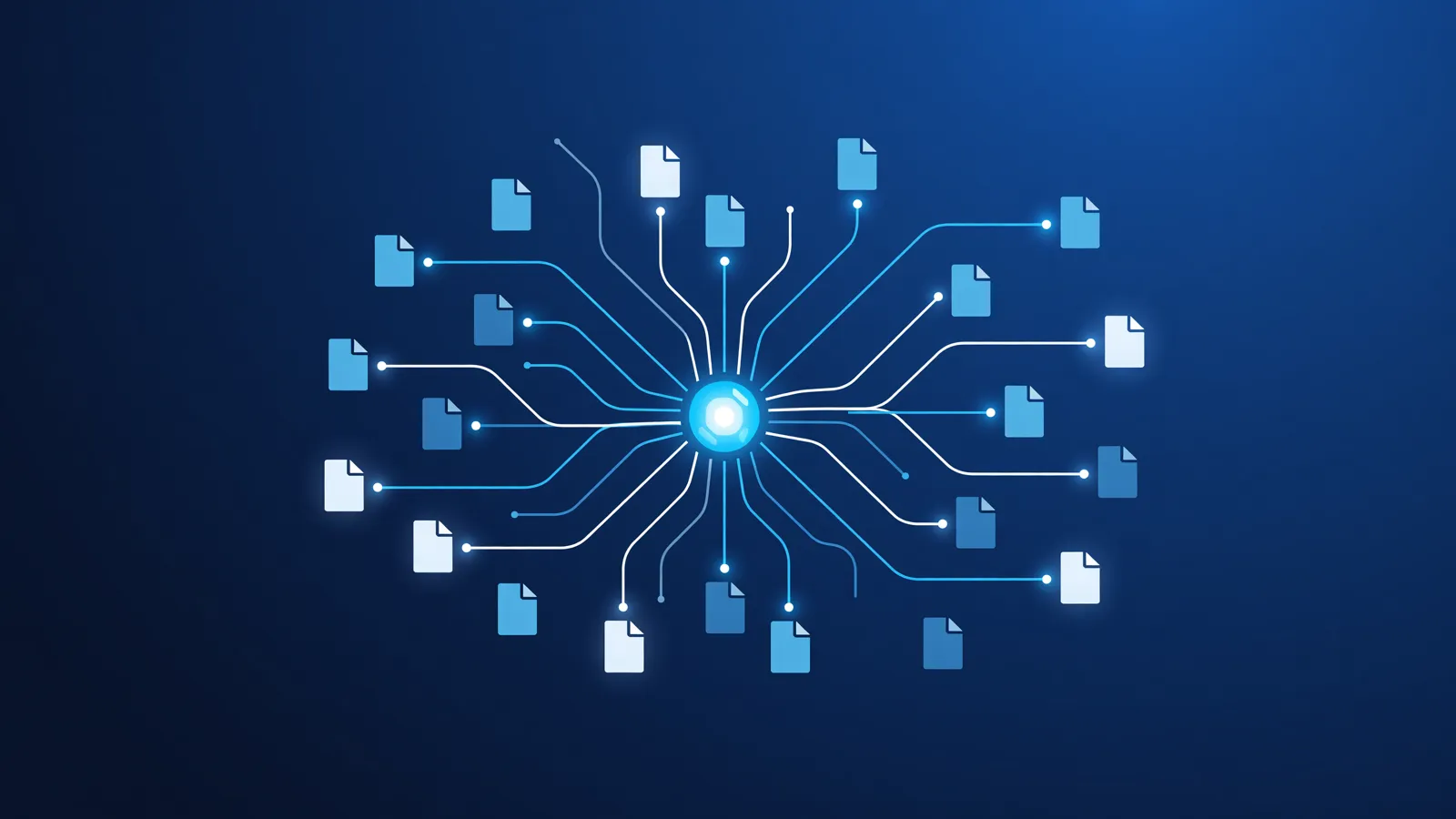
Retrieval-Augmented Generation sounds complicated, but the concept is surprisingly simple. Imagine hiring a smart assistant who has a fantastic general understanding of the world, but does not know the rules of your specific company. If you ask this assistant a question about your company, they will likely guess (hallucinate). RAG is the process where you first hand the assistant a stack of relevant folders from your filing cabinet, and only then ask: "Read through these documents and answer my question based on them."
Why would you want to do this locally? There is really only one decisive reason: absolute privacy. When you use services like ChatGPT, Claude, or Google Gemini to summarize documents, you send these files to their servers. Despite promises of privacy, this means the data leaves your control. For medical records, legal contracts, software source code, or personal diaries, this is often unacceptable or even illegal under the GDPR. By running RAG locally, not a single byte of data leaves your computer. For more information on securing your data, you can consult our guide on using privacy-friendly AI.
How Does a Local Document Searcher Work Under the Hood?
To understand how to set up a local RAG pipeline, it is crucial to know what happens under the hood. You cannot simply drag a folder with 10,000 PDFs into an AI. A local LLM has a limited 'memory' per conversation (the context window). The process of searching documents therefore consists of five steps:
- Ingestion and Parsing: You point the software to your documents (PDF, Word, TXT, Markdown). The software reads the text from these files. With PDFs, this is sometimes difficult if the text is hidden in images (this requires OCR).
- Chunking (Splitting): The extracted text is too long. Therefore, the system splits the text into small, overlapping pieces (chunks) of, for example, 500 words.
- Embedding: This is the most important step. A special AI model (the embedding model) reads each chunk and converts the meaning of that text into a series of numbers (a vector). This makes it possible for computers to mathematically compare the 'meaning' of sentences. If you want to learn more about this, read our explanation on another domain: how vector databases work.
- Storage: These vectors are stored in a local vector database (often a lightweight variant like ChromaDB or Qdrant, which runs invisibly in the background).
- Retrieval and Generation: When you ask a question, your question is also converted into such a sequence of numbers (a vector). The database searches rapidly for the text chunks from your documents that mathematically most resemble your question. These relevant pieces of text, along with your original question, are sent to the large language model (LLM). The LLM then formulates a readable answer.
What Hardware Do You Need?
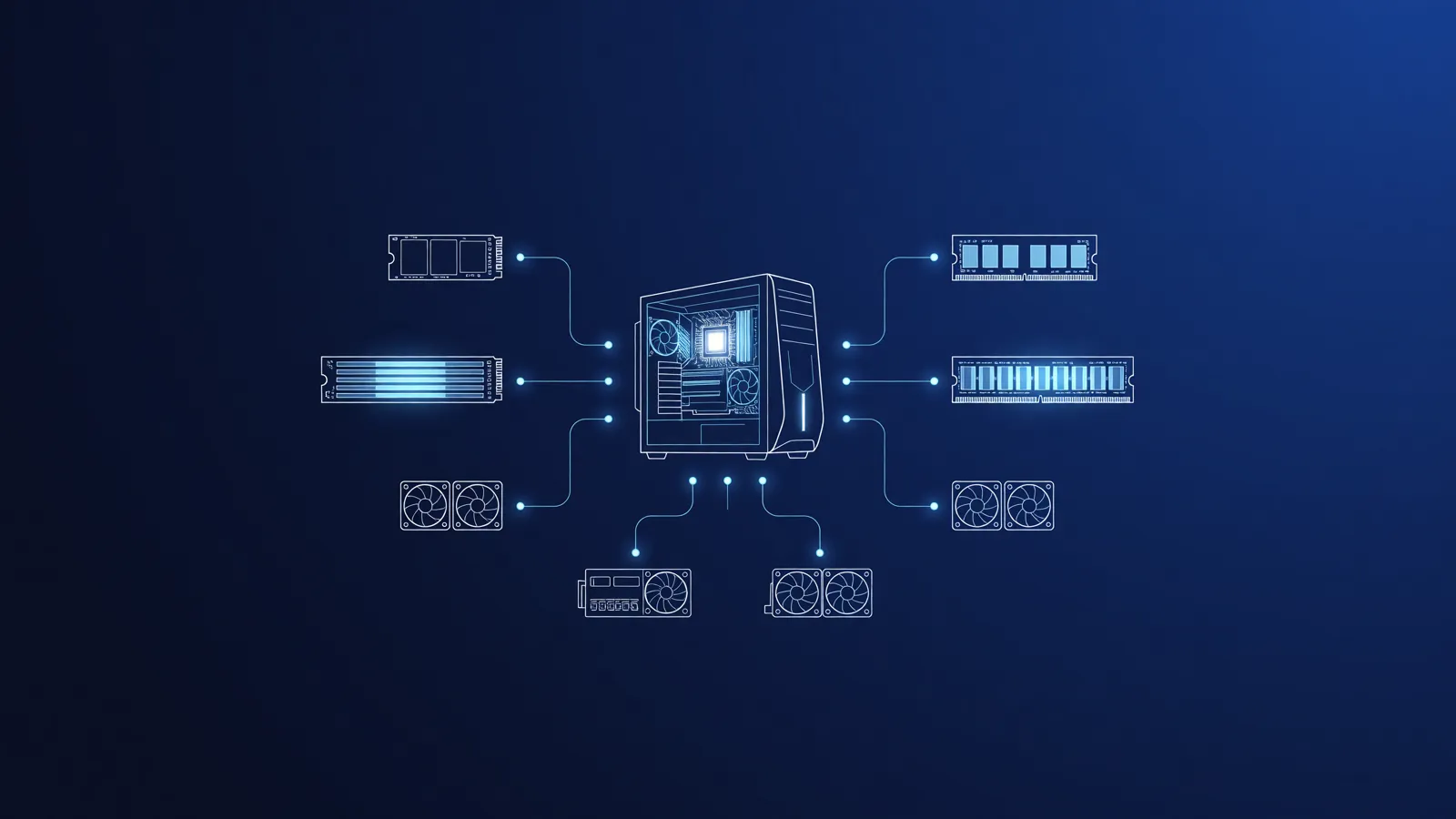
Running local AI requires computing power. Because RAG consists of two parts (searching and generating), it strains your computer in different ways. The searching (embeddings and vector database) mainly costs CPU power and system memory (RAM). This is not a problem for most modern computers.
However, generating the answer (running the LLM, such as Llama 3 or Mistral) is demanding. This is where the GPU (graphics card) comes into play. Models need Video RAM (VRAM) to perform calculations quickly. Do you have a Windows PC with a dedicated NVIDIA card with at least 8GB VRAM? Then you are generally good to go for small to medium-sized models. For a deep dive, read our guide on the ideal hardware for local LLMs.
For Mac users, the situation is unique and often more advantageous for AI. Apple Silicon chips (M1, M2, M3, M4) use Unified Memory. This means that if you have a Mac with 32GB or 64GB of RAM, the GPU can use it directly. As a result, Macs are exceptionally good at running relatively large AI models without the need for an expensive dedicated graphics card. Check out our specific guide for local RAG on a Mac.
Accessible Tools for Local RAG (Without Programming)
A year ago, you had to write Python scripts yourself to set up a RAG pipeline. Today, there are ready-made, graphical applications (desktop apps) that make this process incredibly simple. We discuss the three best options for consumers and SMEs.
1. AnythingLLM (The Best All-Rounder)
AnythingLLM (by Mintplex Labs) is currently the most mature desktop application for local RAG. It is free, open-source, and installs like a normal program on Windows, Mac, or Linux. The big advantage of AnythingLLM is the "Workspace" structure. You can create different folders (for example, 'Administration', 'Project X', 'Personal Notes') and upload specific documents per workspace. AnythingLLM has a built-in vector database and can communicate seamlessly with local LLM runners like Ollama or LM Studio.
2. ChatRTX (For NVIDIA Owners)
If you have a modern Windows PC with an NVIDIA RTX graphics card from the 3000 or 4000 series with at least 8GB VRAM, NVIDIA's own ChatRTX is an impressive option. The main advantage is speed; it is fully optimized for Tensor Cores. It installs everything (including the model and the vector database) in one massive package. A disadvantage is that it is very rigid: it only accepts specific file formats and the interface is very basic compared to AnythingLLM.
3. Dify or Flowise (For Advanced Users)
If you have a bit more technical knowledge and can perhaps run Docker, Dify and Flowise are fantastic platforms. They allow you to visually build complex AI workflows (via drag-and-drop). For example, you can set the AI to not only search in documents but also perform a local web search if the answer is not in the documents.
Step-by-Step: Setting Up Your First Private Knowledge Base with AnythingLLM
We use AnythingLLM for this step-by-step guide, as it offers the smoothest experience for 90% of users. Before you begin, we recommend installing Ollama. Ollama acts as the 'engine' that runs the LLM locally. If you do not know how this works, first read our guide on running an LLM locally.
- Install the basics: Download and install Ollama. Open the terminal and type
ollama run llama3. This downloads the Llama 3 (8B) model, which offers an excellent balance between speed and intelligence. - Download AnythingLLM: Go to the AnythingLLM website and download the desktop version for your operating system.
- The Onboarding: Start AnythingLLM. During installation, the program will ask which 'LLM Provider' you want to use. Choose Ollama here and select the Llama 3 model you just downloaded.
- Choose a Vector Database and Embedding Model: AnythingLLM offers the option to run these built-in (native). Choose LanceDB (the default built-in database) and the built-in 'AnythingLLM Embedding model'. This means you do not have to set up complex external services.
- Create a Workspace: After setup, you will land on the main screen. Click "New Workspace" and give it a name, for example, "Manuals".
- Load Documents (Ingestion): Click the document icon (often a folder or paperclip) in your workspace. Drag and drop some PDF or text files here. Important: after uploading them, you must explicitly click "Save and Embed" or "Move to Workspace". This is the moment your computer starts reading and vectorizing the documents. Depending on the size of the documents, this may take a few minutes.
- Ask your questions: Go to the chat window in your workspace and ask a question you know the answer to is in the documents. The AI will now search, cite the document, and formulate an answer based on your data.
Indexing Folders and Keeping Them Up-to-Date
A common desire is to monitor a folder on your computer 'live'. Suppose you have a folder /My Documents/Notes/ and every time you save a Word file there, you want the AI to know about it immediately.
Although tools like AnythingLLM are getting better at retrieving local data, "live synchronization" is often still a weak point in consumer software. What usually happens is that you send a static copy of your document to the tool's internal storage. If you modify the original file, you have to upload and embed it again (re-embed) in the tool. For business applications (Enterprise RAG), complex pipelines exist for this, but for the home user, managing the vector database requires discipline. Try to update your documents in batches and remove outdated documents from your workspace to prevent the AI from finding conflicting information.
The Honest Limits and Disadvantages of Local AI RAG
We have to be realistic: a local AI on a laptop does not (yet) perform the same as ChatGPT-4 with a multi-million dollar budget behind it. If you start working with local RAG, you will encounter the following limitations. It is essential to know these so you can adapt your workflow accordingly.
1. The "Lost in the Middle" Problem
Even if the RAG system finds the right pieces of text (chunks) and sends them to the LLM, models often struggle to process information that is in the middle of a long prompt. LLMs pay the most attention to the beginning and the end of their context window. If your crucial information is somewhere in the middle of five provided document chunks, the AI may sometimes simply ignore it and reply: "I cannot find this in the documents."
2. Tables and Complex PDF Layouts
Searching pure text (TXT, Markdown) works phenomenally well. However, searching PDF files is notoriously difficult. PDF was designed for printers, not for data extraction. If you upload a PDF with two columns of text, charts, and complex tables (such as an annual report or an invoice), the parsing system often reads this as one giant, unreadable jumble of letters. RAG systems can go terribly wrong with tables. A tip is to manually save critical PDFs as plain text, or use tools explicitly trained in OCR (Optical Character Recognition) and table parsing.
3. Questions About the "Whole" (Summarization)
RAG is a search engine, not a summarization engine. If you ask your local AI: "What is the specific article number of the red bicycle bell in the catalog?", the system will find this perfectly. But if you ask: "What is the general sentiment about bicycle bells in all 400 documents?", the AI will fail. During a search query, the system only retrieves the top 5 most relevant paragraphs; the other 395 documents are not even sent to the AI. For broad summaries, you need to load the entire document into the LLM's context window (without RAG), which is heavy on your memory.
4. Language and Reasoning Ability
Many open-source models, especially the smaller ones that run well on consumer hardware (such as the 7B or 8B models), are primarily trained on English data. Although models like Llama 3 and Mistral understand Dutch reasonably well, they can sometimes fall back on English sentence structures or miss the nuance in Dutch-language documents. For complex reasoning about your data, you simply need a larger, heavier model, which in turn requires more powerful hardware.
Security and Privacy: Is It Really Local?
When we talk about keeping your data local, it is important to remain critical of the software you use. Open-source software is transparent, but applications delivered as a "black box" (compiled closed-source apps) can contain unwanted telemetry. Telemetry means the software sends statistics about your usage to the developer to improve the app.
Always check the settings of your local tools. In applications like LM Studio and AnythingLLM, you can explicitly disable telemetry. Do you want absolute certainty? Then you can run your AI applications on a machine that has no active internet connection, or in an isolated Docker container. Even without an internet connection, a correctly configured local RAG setup will continue to function without problems. After all, the model is already on your hard drive, the vector database runs on your localhost, and the processing happens purely on your own CPU and GPU.
Conclusion
Searching your own documents with a local AI model is a powerful way to leverage the intelligence of large language models while maintaining 100% privacy. Although setting it up via tools like AnythingLLM is very accessible nowadays, it remains important to have a general understanding of how vectors and chunks work. Keep in mind the difficulty systems have with complex PDF layouts and be aware of the hardware requirements.
By managing your own Knowledge Base on your own hardware, you not only invest in data security, but you also build a personal, smart assistant that truly understands what you are working on, without Big Tech looking over your shoulder.