Local models in Docker: containers without the hassle
On the route to running language models locally, we are at the step of installing and isolating, directly following the hardware choice and preceding the linking of documents or the setup of a network server. Install a language model straight onto the base system and sooner or later you will run into conflicting CUDA versions, polluted Python environments or unintended network exposure. By running runtime engines such as Ollama or vLLM in Docker containers, the base system stays clean, predictable and reproducible.
Before we start containers, it is essential to check whether the physical components are adequate for the intended workload. Consult the overview on what hardware you need to run LLMs locally to verify whether the available video memory offers enough bandwidth and capacity for the desired model parameters. In this manual we build a stable container environment that communicates frictionlessly with the underlying graphics card, and we explain how network, memory and storage settings should be optimized.
Hardware baseline and test configuration
For running containerized models we apply a clear hardware baseline. Containers introduce virtually no computational overhead for the matrix operations themselves, but they do require enough stable host memory to prevent freezes during container initialization and memory allocation. The table below offers an overview of the minimum configuration and the recommended guidelines for a suitable practical setup when applying the instructions in this guide.
| Component | Minimum baseline | Recommended test setup |
|---|---|---|
| Operating system | Linux x86_64 (Ubuntu 22.04 LTS) | Ubuntu 24.04 LTS or Debian 12 |
| Working memory (RAM) | 16 GB DDR4 | 32 GB DDR5 |
| Graphics card (VRAM) | NVIDIA GPU with 8 GB VRAM | NVIDIA RTX 4080/3090 (16–24 GB VRAM) |
| Storage space | 50 GB free SSD space | 250 GB NVMe SSD (PCIe 4.0) |
| Reference model | Llama-3.1-8B-Instruct (Q4_K_M) | Mistral-Nemo-12B or Qwen2.5-14B (Q4/Q8) |
If the system runs on a bare-metal Linux distribution, first consult the specific steps on running local LLMs on Linux to secure the proper proprietary NVIDIA drivers at kernel level before setting up Docker. Without working drivers on the host, no container can communicate with the graphics accelerator.
Why containerize local AI?
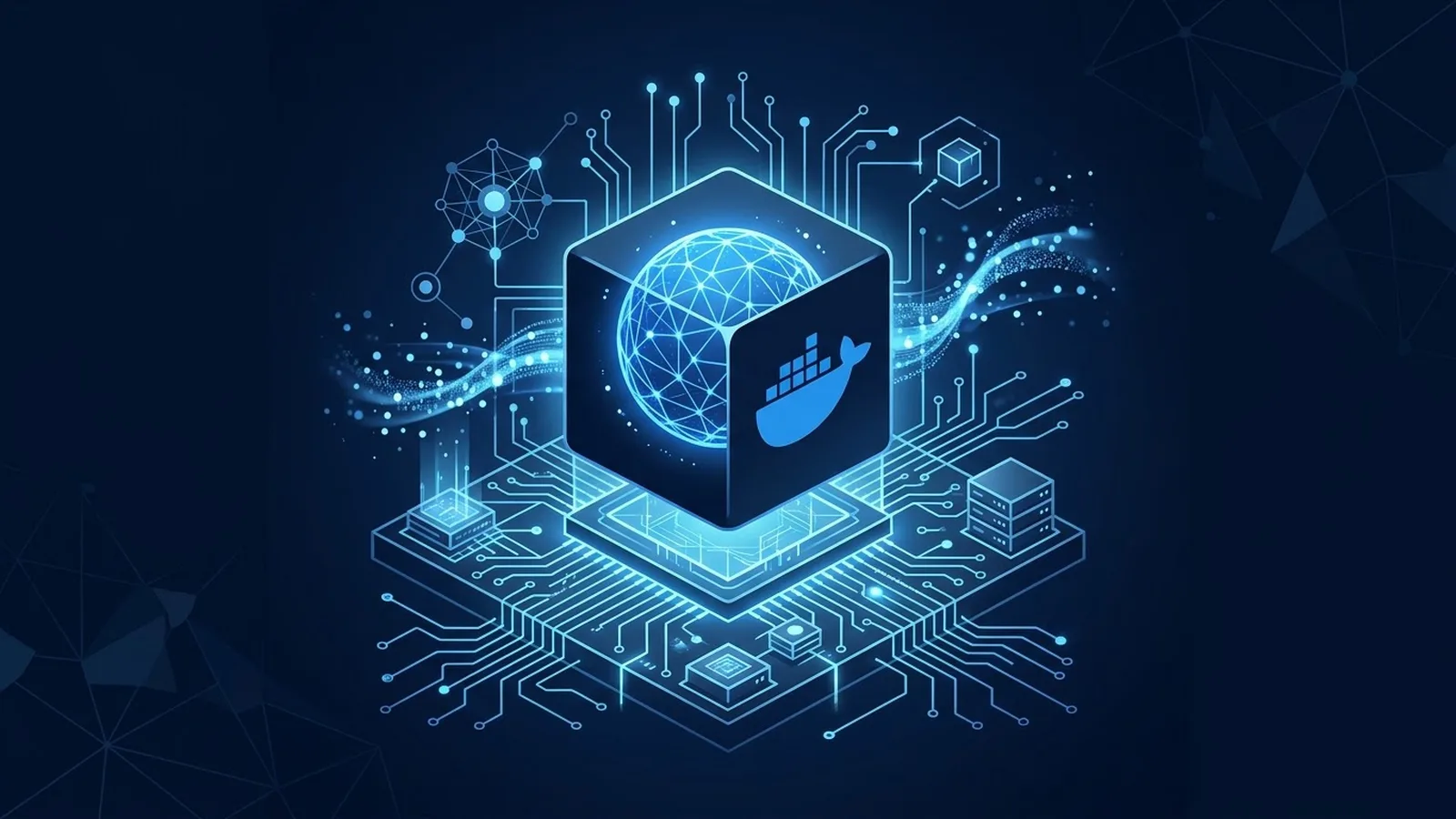
Compiling inference software such as llama.cpp directly, or setting up virtual Python environments for advanced servers, often leads to dependency conflicts in practice. An automatic update of the system CUDA toolkit, a change in glibc or a clash between PyTorch versions can render a previously working installation unusable. Docker solves this fundamentally by encapsulating the complete runtime — libraries, CUDA bindings and API endpoints included — in an immutable layer.
A second major advantage is reproducibility and modular design. Containerization lets you switch between different inference engines within seconds (Ollama for daily use and vLLM for high-throughput batch processing, for example) without configuration files getting in each other's way. On top of that, supporting services — vector databases, proxy servers and web interfaces — can run on an isolated internal network without ports being left open to other devices.
GPU passthrough with the NVIDIA Container Toolkit
By default, Docker containers have no direct access to the host system's hardware GPU cores. The container sees only the emulated CPU and the assigned RAM. To make the graphics card available inside containers, NVIDIA supplies the Container Toolkit (formerly known as nvidia-docker2). This toolkit acts as a runtime hook between Docker and the host driver, routing CUDA calls straight through to the hardware without any appreciable loss of speed.
Installation runs through the Linux distribution's official package repository. After adding the signing key, the command configures the Docker daemon automatically:
# Voeg de NVIDIA Container Toolkit repository toe
curl -fsSL https://nvidia.github.io/libnvidia-container/gpgkey | sudo gpg --dearmor -o /usr/share/keyrings/nvidia-container-toolkit-keyring.gpg \
  && curl -s -L https://nvidia.github.io/libnvidia-container/stable/deb/nvidia-container-toolkit.list | \
    sed 's#deb https://#deb [signed-by=/usr/share/keyrings/nvidia-container-toolkit-keyring.gpg] https://#g' | \
    sudo tee /etc/apt/sources.list.d/nvidia-container-toolkit.list

# Installeer het pakket en herstart Docker
sudo apt-get update
sudo apt-get install -y nvidia-container-toolkit
sudo nvidia-ctk runtime configure --runtime=docker
sudo systemctl restart docker
To verify that GPU passthrough works flawlessly before building heavy containers, we run a quick test container based on the official CUDA image:
docker run --rm --gpus all nvidia/cuda:12.4.1-base-ubuntu22.04 nvidia-smiIf the terminal shows the familiar table with the GPU name, VRAM usage and driver version, the bridge between the host kernel and Docker is operational. If the container returns an error such as could not select device driver, the Docker service was not restarted after configuration, or the kernel module is missing on the host system.
Container storage and persistent volumes
Language models range in file size from 4 GB to well over 40 GB per weights file. A common mistake is downloading models inside a container's temporary write layer. As soon as the container is refreshed or replaced by a newer image version, every downloaded model disappears and the entire dataset has to be fetched again.
To prevent data loss, we always mount an external host volume to the engine's internal storage location. For Ollama that is /root/.ollamaby default. Also make sure the file system on the host is formatted as ext4 or XFS; network shares over NFS or SMB introduce too much latency and can cause I/O errors while loading the model weights into video memory.
Understanding model structures and file sizes is essential here. The article on quantization explained for local hardware sets out in detail why a 4-bit or 8-bit variant requires considerably less storage and video memory than uncompressed FP16 models, allowing several models to fit comfortably on the same SSD.
Docker Compose: combining Ollama and Open WebUI
Rather than using separate docker runcommands with long flags, we bundle the services in a clear docker-compose.ymlfile. In it we define both the compute engine (Ollama) and a user-friendly interface (Open WebUI) on an internal, shielded bridge network.
services:
  ollama:
    image: ollama/ollama:latest
    container_name: ollama-core
    restart: unless-stopped
    ports:
      - "127.0.0.1:11434:11434"
    volumes:
      - ./ollama_data:/root/.ollama
    deploy:
      resources:
        reservations:
          devices:
            - driver: nvidia
              count: all
              capabilities: [gpu]

  open-webui:
    image: ghcr.io/open-webui/open-webui:main
    container_name: open-webui
    restart: unless-stopped
    ports:
      - "127.0.0.1:3000:8080"
    environment:
      - OLLAMA_BASE_URL=http://ollama:11434
    volumes:
      - ./webui_data:/app/backend/data
    depends_on:
      - ollama
Start the environment in the background with a single command:
docker compose up -dNext, we can pull a model from within the running container via the command line:
docker exec -it ollama-core ollama run llama3.1:8bBecause of the port binding 127.0.0.1:3000 , the interface is reachable exclusively from the local machine. Open your browser and navigate to http://localhost:3000 to start working interactively straight away.
Advanced resource management: VRAM, shared memory and OOM prevention
When heavy models run inside containers, a sudden spike in context length or a concurrent request can lead to memory shortages. If physical RAM or VRAM fills up, the Linux Out-Of-Memory (OOM) killer steps in, abruptly terminating the Docker container.
For inference engines that use shared memory (such as vLLM or multi-process pipelines with PyTorch), the Docker default shm-size of 64 MB is severely inadequate. When internal processes exchange data through shared memory, the engine crashes immediately with a bus error. Always adjust the shm_size in the compose file:
    shm_size: '16gb'
    ulimits:
      memlock:
        soft: -1
        hard: -1
      nofile:
        soft: 65536
        hard: 65536
It is also advisable to constrain the engine's behavior through environment variables. With vLLM, the parameter --gpu-memory-utilization 0.90 prevents the container from reserving 100% of the VRAM, leaving room for CUDA overhead and any display servers on the host.
Network isolation and port security
One of the biggest risks when hosting language models locally is unintentionally exposing unsecured API endpoints. Engines such as Ollama, the llama.cpp server and vLLM have no built-in authentication, encryption or rate limiting on their ports by default. Anyone on the same local network who scans the IP address can send arbitrary prompts or load models.
By explicitly specifying, in the Docker configuration, 127.0.0.1:11434:11434 in the Docker configuration instead of the notation 11434:11434, we force the socket to listen only on the loopback address. Traffic from other network interfaces is refused by the kernel outright. If you do want to share the container safely within a household or small office, consult the guidelines on using AI safely at home, with practical tips for families to prevent unwanted access and privacy leaks on the home network.
Measurement methods for inference time and container performance
To verify that the container setup performs optimally and that the GPU is genuinely being used to the full, a structured measurement method is necessary. We measure two crucial statistics: Time To First Token (TTFT, the latency before the answer begins) and the sustained throughput in tokens per second (tok/s).
Using a standardized curlcommand with timing, we can query the container's API endpoint directly:
curl http://127.0.0.1:11434/api/generate -d '{
  "model": "llama3.1:8b",
  "prompt": "Schrijf een beknopte samenvatting van 100 woorden over kwantummechanica.",
  "stream": false
}' | jq '{
  total_duration_ms: (.total_duration / 1000000),
  load_duration_ms: (.load_duration / 1000000),
  eval_count: .eval_count,
  eval_rate_tok_per_sec: (.eval_count / (.eval_duration / 1000000000))
}'
While running this measurement, we monitor GPU load on the host via watch -n 0.5 nvidia-smi. If VRAM usage barely rises during inference and the CPU shoots to 100%, the container is inadvertently running in CPU fallback mode because of a missing GPU reservation in the container definition.
Edge cases and troubleshooting
In practice, specific errors regularly occur when combining Docker and AI workloads. Below we cover the most common edge cases and their direct solutions:
- Error:
nvidia-container-cli: initialization error: nvml error: This points to a mismatch between the NVIDIA kernel module and the userspace drivers after an automatic kernel update. Restart the host system so the new kernel modules load correctly. - Error:
Permission deniedon the volume: Containers often run internally under a specific UID (such as1000orroot). If the mounted host directory is owned by a different user without write permissions, writing models fails. Adjust the permissions withsudo chown -R 1000:1000 ./ollama_data. - Symptom: generation slows dramatically after a few sentences: This occurs when the model just barely fails to fit entirely in VRAM and the engine offloads layers to slow system RAM. Reduce the context length or choose a more heavily quantized variant of the model.
- Symptom: zombie processes after stopping manually: Some inference containers do not handle
SIGTERMcleanly. Use the flaginit: truein the compose file so Docker injects a lightweight init process (tini) to clean up orphaned processes.
Privacy and data flows inside containers
A fundamental reason to run models through Docker on your own hardware is to guarantee complete data sovereignty. Once the container images have been pulled and the weights sit locally on disk, the inference stack functions entirely autonomously without outgoing network connections.
No prompts, document fragments, embeddings or generated answers are forwarded to external cloud services. More background on the legal and operational safeguards around local data processing can be found in the overview on using AI in a privacy-friendly way. The network inspection below lets you verify at any moment that no active external sockets are open during inference:
# Inspecteer actieve netwerkverbindingen binnen de container
docker exec -it ollama-core ss -tulpn
Reliability and automation in production workflows
Once the local container infrastructure runs stably, it forms the ideal foundation for more complex automation, such as local software agents that carry out step-by-step plans independently, call tools and query databases. For anyone looking to move on to designing complete agent systems, the learning track on becoming an AI agent engineer in 2026 offers a structured approach to orchestration, memory management and tool use.
Even with a flawless, isolated container environment, the underlying language model remains susceptible to hallucinations, outdated facts and logical reasoning errors. Separating the infrastructure layer from the validation layer is therefore crucial to a reliable end result. Consult the methodology on fact-checking AI answers to build in automated validation steps before model output is fed blindly into business processes or databases.
Conclusion and maintenance advice
Running local language models in Docker containers eliminates configuration conflicts on the base system and results in a robust, reproducible AI setup. By strictly separating storage volumes, binding ports to the loopback address and setting up the NVIDIA Container Toolkit correctly, the system stays stable under heavy workloads.
During periodic maintenance, keep an eye on the disk space taken up by outdated Docker images. Over time, new versions of runtime images can leave behind tens of gigabytes of unused intermediate layers. Run a monthly cleanup with docker image prune to remove unused build layers safely, while the downloaded model files in the mounted volumes remain untouched.